Your trading day starts on one calm screen.
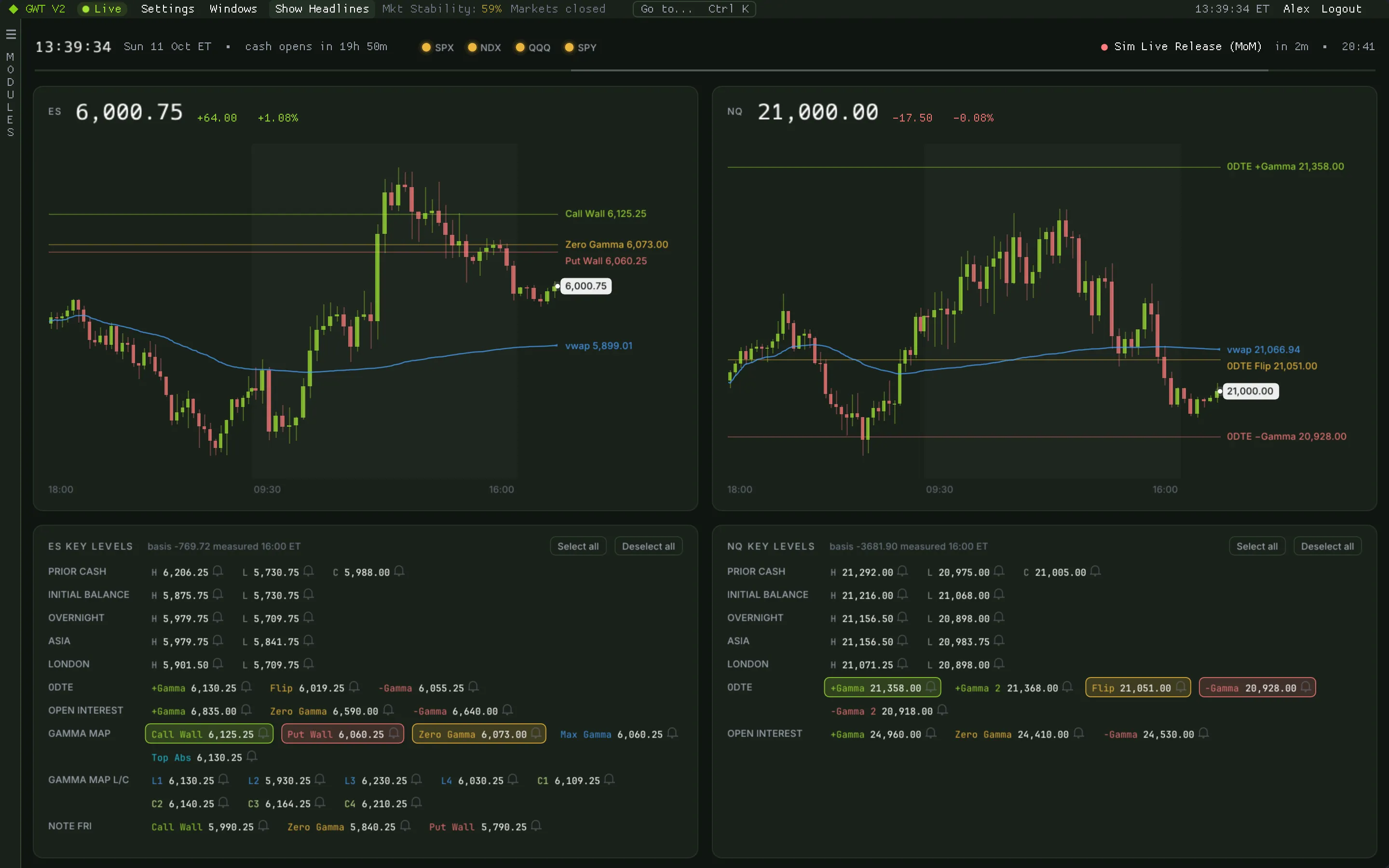
GWT V2 opens on the Desk: the New York clock, gamma stoplights, the next event and ES and NQ charts with the levels you care about. When you want something else, build it yourself on My Desk.
Screenshots: GWT V2 1.0.3 on simulated market data.
Desk
The whole session at a glance.
The strip at the top holds the New York clock, a countdown to the cash open or close, 0DTE gamma stoplights for SPX, NDX, QQQ and SPY and the next scheduled release. Underneath, ES and NQ five-minute charts cover the full futures session with VWAP and your chosen levels.
- Key levels in futures points: prior cash session, initial balance, overnight, Asia and London highs and lows, 0DTE gamma, open interest and the SPX gamma map levels, moved onto ES and NQ with a measured basis.
- Click a level to draw it on the chart. Click its bell to arm an alarm that plays once when price gets there.
- Dots on the session line mark the day's calendar events; hover one for its time in New York and your local time.
- The same levels and alarms carry over to the Liquidity Heatmap, so both read the same map.
How traders use itBefore the open, check whether the four stoplights agree, see where price sits against the overnight range and the gamma levels, and arm alarms on the two or three levels that matter today.
My Desk
Build the screen you actually trade from.
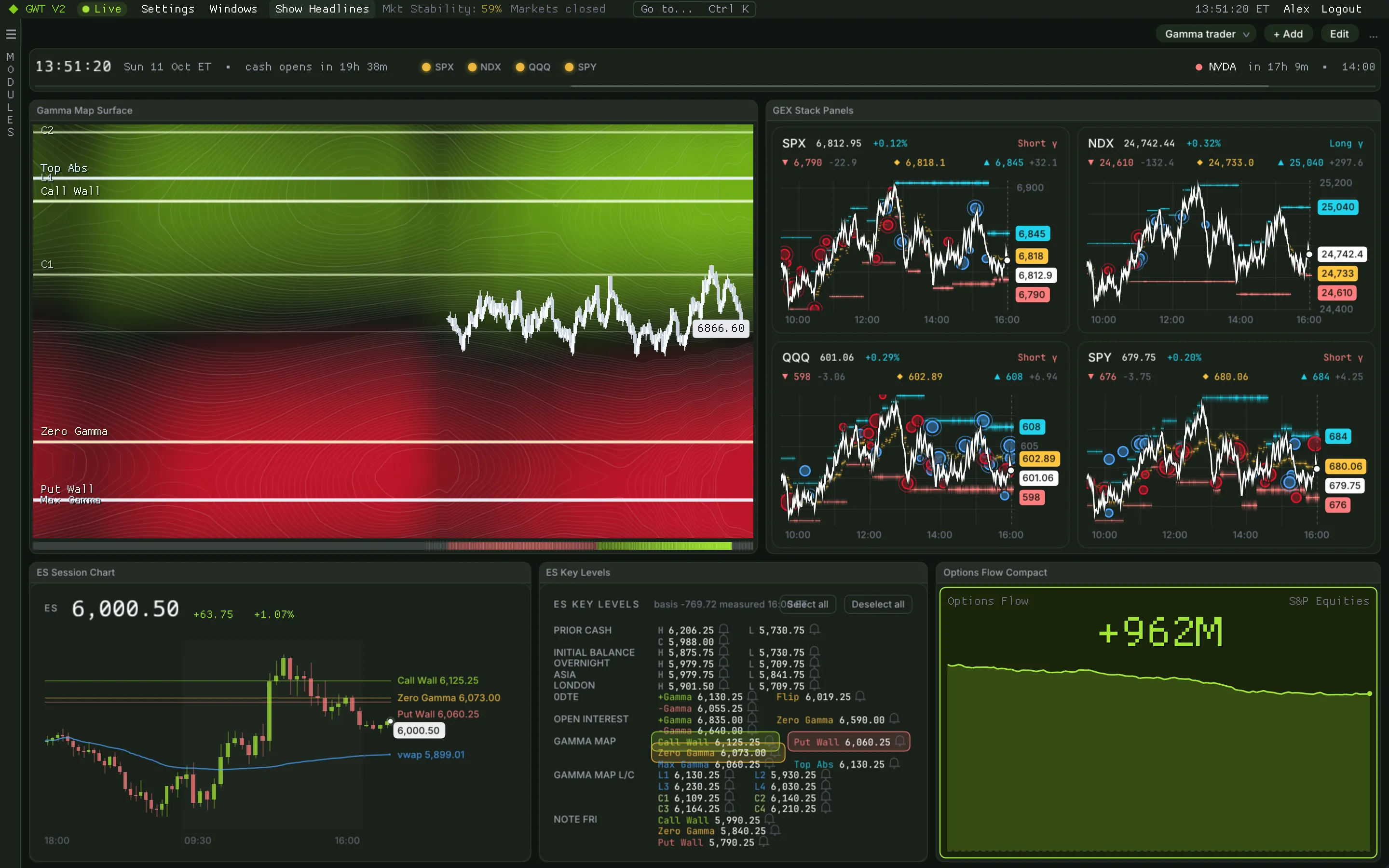
My Desk is a grid you fill with pieces of the other modules: a gamma map surface, GEX Stack panels, the ES chart, key levels, options flow and about 40 more. Keep several layouts and switch between them with Ctrl/⌘+D.
- Start from a template (Gamma trader, Flow scalper or Overview) and move, resize or swap tiles from there.
- Hold Alt over any module to pick up the element under the mouse and drop it onto your desk, or right-click a module in the sidebar to add its whole view.
- Maximize a tile for a closer look, undo a change, and keep a default layout for the morning.
- Layouts are plain JSON, so you can share a setup with another member.
How traders use itPut the few things you watch during the open on one screen, so you never switch modules at the moment it matters.
Workspace
Quick to drive, easy to learn.
GWT V2 is built to be used from the keyboard while the market moves. The sidebar can stay pinned, hide away or slide in on hover (Ctrl/⌘+B), and every floating window opens in the middle of the screen, in front.
- GEX StackGamma
- GEX StandardGamma
- GEX GreeksGamma
- GEX OrderflowFlow
Command palette
Press Ctrl/⌘+K and type a few letters to jump to any module or window. Ctrl/⌘+D switches between your desks.
106 themes
Dark, light and e-paper palettes with a live preview while you browse (Ctrl/⌘+T). See the themes.
Help in every module
Press ? or F1 in a module for what it shows, how to read it, common mistakes and every control.
Sounds and alerts
Level alarms, news keyword alerts and community trade sounds, each with its own switch in the sound settings.
Market status
The menu bar shows whether the markets are open, and the session times, holidays and early closes come from a full exchange calendar.
Updates itself
New versions download in the background, are signature-checked and apply on restart. Keep the app in a folder you can write to, such as Applications.
Keep exploring
Related modules
Ready when the open is
Put gamma, flow and liquidity on one screen.
Get your access token, download the app for your Mac or PC and paste the token at sign-in. It takes about two minutes.